iPhone & iPad
Find your way around the iPhone and iPad app
Quiltler 3 has four tabs along the bottom: Studio for your quilts and the community's, Calculators, Support to message Chris, and More for settings.
Where to find it
The tab bar at the bottom of the app: Studio, Calculators, Support and More.
Get the app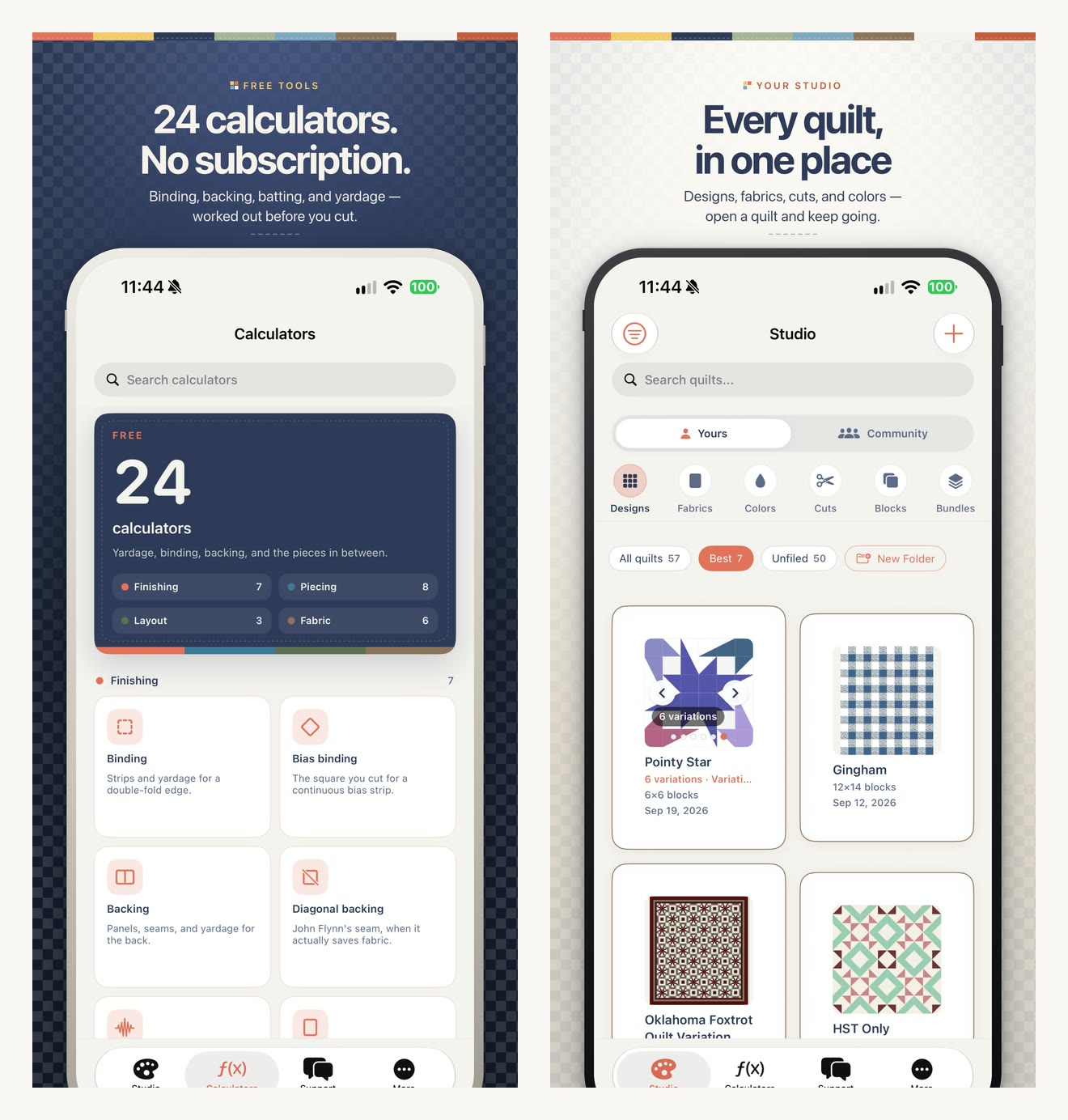
How to do it
- Get Quiltler 3 from the App Store and sign in. The app opens on Studio.
- In Studio, switch between Yours and Community at the top, then pick a shelf: Quilts, Fabrics, Colors, Shapes, Blocks or Bundles.
- Calculators has the 24 free calculators, with Search calculators at the top. Each one opens with its answer filled in and updates as you type.
- Support is your chat with Chris, and More has your subscription, Auto-Save, the app's language and your account.
Good to know
- iPhone stays upright and iPad turns any way. When the screen is wider than it is tall, the designer's tools sit in a panel beside the quilt.
- The laptop button at the top of Studio opens Quiltler for desktop in your browser, with the same quilts.
- Who can use it
- Free to download. Designing more than one saved quilt is part of a subscription
- Where it works
- iPhone & iPad
This guide answers
- Is there a Quiltler app for iPhone and iPad?
- Where is everything in the iPhone app?
- Where did Community go in the app?
- Where are the calculators in the app?
- How do I see other quilters' quilts on my phone?