This guide shows you how to connect Missouri Star Quilt Company shopping with Quiltler quilt planning. Missouri Star supplies fabric, precuts, kits, patterns, notions, tutorials, and checkout, while Quiltler lets you build the quilt, audition fabrics, and calculate requirements. The process is manual because there is no confirmed catalog integration, endorsement, or partnership between the two services.
In this guide
- In this guide
- How Quiltler and Missouri Star Fit Into the Workflow
- Quiltler and Missouri Star at a Glance
- Where Quiltler Fits Best
- Where Missouri Star Fits Best
- 1. Save Candidate Fabrics at Missouri Star
- 2. Build or Choose the Quilt Layout in Quiltler
- 3. Photograph and Add Fabrics You Own
- 4. Audition Color, Contrast, Direction, and Print Scale
- 5. Calculate Yardage and Account for Precuts
- 6. Turn the Quiltler Summary Into a Shopping List
- 7. Place the Order Through Missouri Star
- 8. Check the Delivered Fabric Before Cutting
- Continue Planning Your Quilt
How Quiltler and Missouri Star Fit Into the Workflow
The retailer’s full name is Missouri Star Quilt Company, commonly shortened to Missouri Star or MSQC. Its website is free to browse, and Missouri Star says its catalog includes more than 30,000 bolts of fabric. Products are priced individually, so you need to check the relevant listing for current price and availability.
Missouri Star is better for finding and purchasing fabric. Its shopping app is available for iPhone, iPad, and Android, with tools for shopping, account management, order tracking, deals, wishlists, and Quilter’s Cash.
Quiltler is better for the design and quantity-planning side of this workflow. Its online quilt designer runs in modern browsers on Windows, Mac, and Chromebook, while its companion app supports iPhone and iPad. You can build a layout, add photographs of fabrics you own, calculate yardage, and export a PDF cutting summary.
The two products remain separate. A Missouri Star pattern, kit, product listing, or wishlist item does not automatically become an editable Quiltler project, and Quiltler does not send calculated quantities to Missouri Star checkout.
Quiltler and Missouri Star at a Glance
Each service handles a different part of the project, so you will move between them as your plan becomes more specific.
| Feature | Quiltler | Missouri Star Quilt Company |
|---|---|---|
| Primary role | Quilt design and planning | Fabric shopping and orders |
| Platform | Web browser; Apple companion | Website; iOS and Android app |
| Starting cost | Free to start | Free browsing and app |
| Real-fabric library | Yes Unlimited on free tier | Retail fabric catalog |
| Quilt layout design | Yes Built-in and custom layouts | Shopping-focused app |
| Automatic yardage | Yes Included on free tier | No Not a design tool |
| PDF cutting summary | Yes Export from project | No Not a design tool |
| Wishlist syncing | Project shopping lists | Yes Website and app sync |
| Retail checkout | Independent pattern marketplace | Yes Fabric and supply checkout |
Missouri Star wishlists transfer between its website and app, but shopping-cart contents do not. No automatic Missouri Star catalog or checkout connection with Quiltler has been confirmed.
Where Quiltler Fits Best
What works about Quiltler
- Design and recolor without entering a card
- Build an unlimited photographed fabric library
- Set quilt dimensions and create custom cuts
- Calculate fabric and yardage automatically
- Export a PDF cutting summary
- Use the main studio on Windows, Mac, or Chromebook
Where it falls short
- No confirmed Missouri Star catalog integration
- No automatic transfer to Missouri Star checkout
- Fabric photographs cannot guarantee exact cloth color
- The companion app is limited to supported Apple devices
Where Missouri Star Fits Best
What works about Missouri Star Quilt Company
- More than 30,000 bolts in its stated catalog
- Sells yardage, precuts, kits, patterns, and notions
- Provides quilting tutorials
- Offers shopping apps for Apple and Android devices
- Syncs wishlists between its website and app
- Handles orders and order tracking
Where it falls short
- Shopping app focuses on retail tasks, not quilt design
- Cart contents do not sync between website and app
- Products are priced separately rather than under one price
- No confirmed automatic connection to Quiltler projects
1. Save Candidate Fabrics at Missouri Star
Begin by browsing the fabric, precut, kit, or pattern categories that match your project. Save plausible choices to a Missouri Star wishlist instead of placing everything in the cart immediately. This keeps the candidates accessible while you test the design.
Group the candidates by role, such as background, focus print, secondary print, border, binding, and backing. Record the item name and the form in which it is sold, especially when comparing yardage with charm packs, layer cakes, jelly rolls, or other precuts.
A wishlist is more useful than a cart during this stage because Missouri Star says wishlists transfer between its website and shopping app. Cart contents do not transfer between those two places, so choose one checkout location later.
2. Build or Choose the Quilt Layout in Quiltler
Open the Quiltler web studio and select a built-in layout, open an editable marketplace pattern, or create your own design. The quilt block library can help if you want to begin with a familiar block rather than draft every piece.
Set the intended finished dimensions before using the yardage result as a shopping guide. If you are undecided between common bed or throw dimensions, consult the quilt sizes guide before settling on the canvas size.
Identify every fabric role in the layout. Do not combine pieces under one fabric merely because they belong to the same block; that can hide the actual quantity required for each color or print. The guide to cuts versus fabrics explains why the way pieces are constructed affects calculated yardage.
Quiltler is free to start with no card needed. The free tier includes unlimited designing and recoloring, an unlimited fabric library, automatic yardage, and one saved quilt.
3. Photograph and Add Fabrics You Own
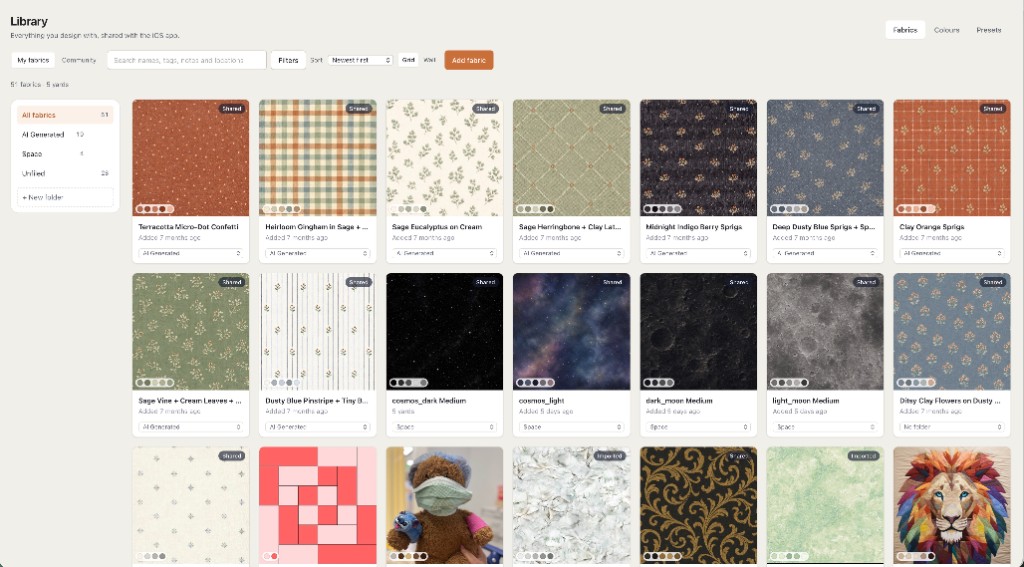
Use fabric from your own stash when you want the most defensible real-fabric preview. Place a flat, unwrinkled swatch in even, neutral light, hold the camera square to the surface, and fill the frame without casting a shadow.
Avoid photographing the fabric at an angle because perspective can distort the motif. Include enough cloth to capture the repeat, particularly for large florals, stripes, plaids, and novelty prints. Crop away the table or background before adding the photograph to Quiltler’s fabric library.
Do not copy Missouri Star product photography into another service unless you have permission to reuse it. Before an order arrives, use provisional colors or your own reference notes in Quiltler, then replace them with photographs of the physical fabric after delivery.
4. Audition Color, Contrast, Direction, and Print Scale
Place each fabric into its intended role and inspect the whole quilt before focusing on individual blocks. A palette can contain appealing fabrics yet lose its structure if the values are too similar. The quilt color theory guide explains how value, contrast, temperature, and palette relationships affect a design.
Zoom out to check visual balance, then zoom in to inspect adjacent pieces. Look for areas where a focus print overwhelms smaller units, a background competes with the block design, or repeated colors create unintended heavy spots.
Directional prints need another pass. Check whether stripes, words, or recognizable motifs face the intended way in every rotated or mirrored block. For large motifs, use the fabric print scale guide to make the digital repeat more representative of the physical cloth.
Treat the screen as an auditioning aid rather than a color guarantee. Camera lighting, image processing, and display settings can all change the appearance of a swatch, so preserve your final decision until you can compare the delivered fabrics together.
5. Calculate Yardage and Account for Precuts
Review Quiltler’s automatic fabric requirements and cutting summary after the layout, finished size, and fabric assignments are settled. Confirm that the project dimensions and fabric-width assumptions match what you intend to purchase before relying on the totals.
Yardage and precut counts are not interchangeable. A calculation stating how much fabric the pieces occupy does not by itself tell you how many charm packs, layer cakes, jelly rolls, or other precut packages to buy. Package contents and usable piece dimensions must satisfy the cutting plan.
Compare every required cut with the precut shape you are considering. If a piece cannot be cut from that precut, assign another fabric form or revise the design. For fat-quarter projects, the fat quarter calculator can help you test how many required pieces fit into each fat quarter.
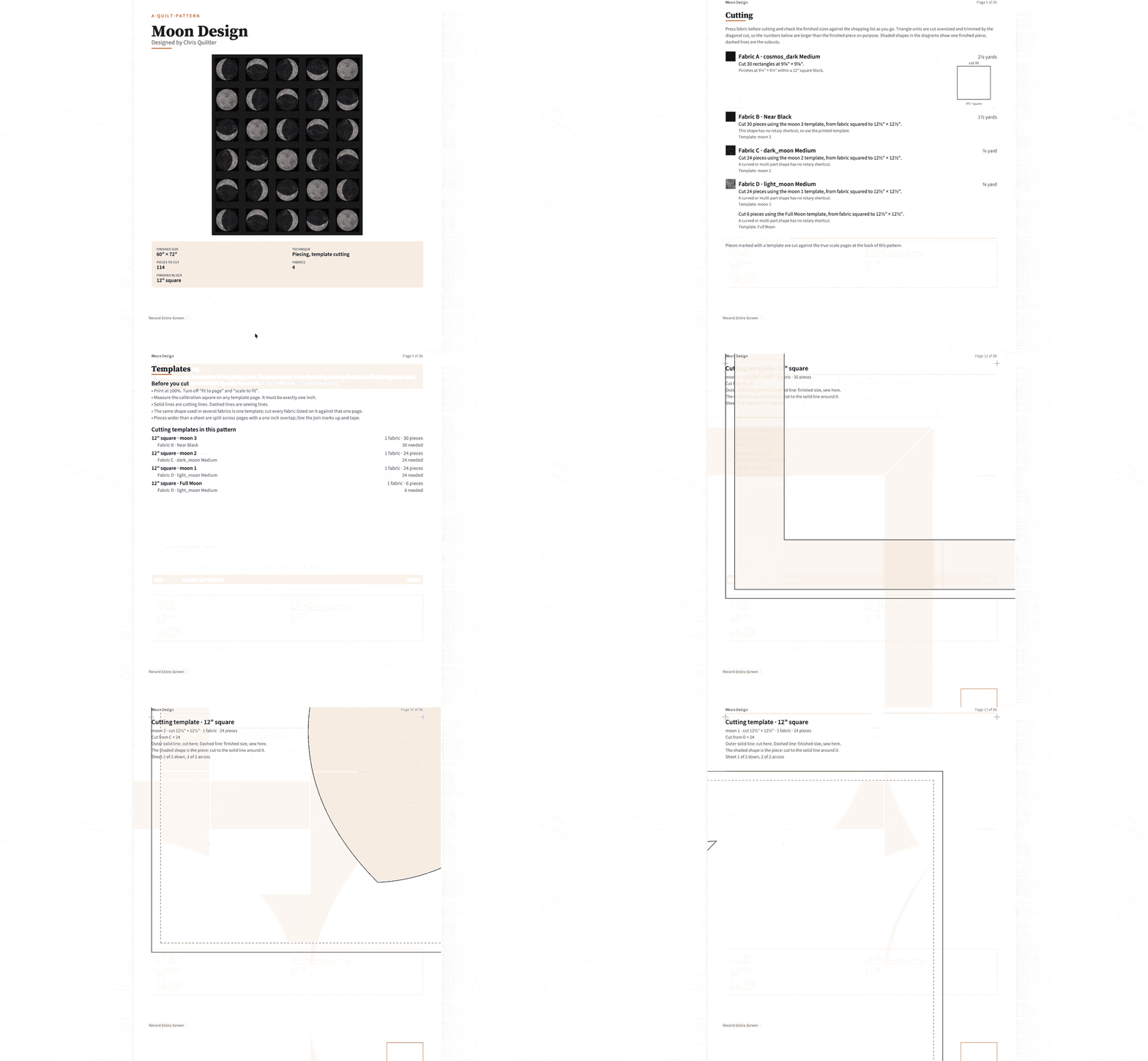
Quiltler’s PDF cutting summary gives you the planned cuts and quantities. A subscription also adds printable pattern packs with a shopping list, rotary cutting chart, assembly map, and true-scale templates.
6. Turn the Quiltler Summary Into a Shopping List
Create one line for each Quiltler fabric role and pair it with the corresponding Missouri Star wishlist item. Record the Quiltler requirement beside the form sold by Missouri Star, such as yardage or a particular precut type.
Keep backing, binding, and batting separate from the quilt-top fabrics. You can check those needs with Quiltler’s backing calculator, binding calculator, and batting calculator.
Add an appropriate margin when the project, cutting method, motif placement, direction, or fabric requires it. Quiltler supplies the calculated requirement, but you remain responsible for allowances tied to your specific cutting and construction choices.
7. Place the Order Through Missouri Star
Return to each saved Missouri Star item and check its current price, availability, fabric form, and quantity before ordering. Fabric, precuts, kits, and other products are individually priced, so the final cost comes from the selected product listings rather than a standard store price.
Compare the available quantity with your checked shopping list. Do not assume that a wishlist quantity, Quiltler yardage result, or precut estimate has automatically moved into the Missouri Star cart.
Choose either the website or shopping app to assemble the final cart. Your wishlist can transfer between them, but the cart cannot, so changing platforms during checkout means rebuilding it. Missouri Star is the better tool at this stage because it handles the live retail transaction, account management, and order tracking.
8. Check the Delivered Fabric Before Cutting
Lay the delivered fabrics together under neutral light before making the first cut. Compare color, value contrast, motif size, and direction with the design, especially if provisional colors were used before ordering.
Photograph the physical fabrics and replace any provisional swatches in Quiltler. Recheck the full quilt and inspect how directional or large-scale prints appear inside the actual pieces.
Confirm the finished dimensions, fabric assignments, yardage, and cutting summary one final time. Quiltler is the best choice for this design-and-planning stage because it connects real-fabric auditioning to calculated requirements and cutting information, while Missouri Star remains the better choice for fabric selection and purchasing.
Continue Planning Your Quilt
How to Design a Quilt
Plan dimensions, blocks, fabric roles, and construction before committing to cloth.
Quilt Fabric Calculator
Check fabric requirements, batting, backing, binding, and cutting instructions.
Show Fabric Prints at Real Size
Set a photographed print to a useful scale before judging motifs and placement.